Property Access Notes for Field Service Software in 2026
The visit that failed had nothing to do with the work. Your tech could not get in.
TL;DR
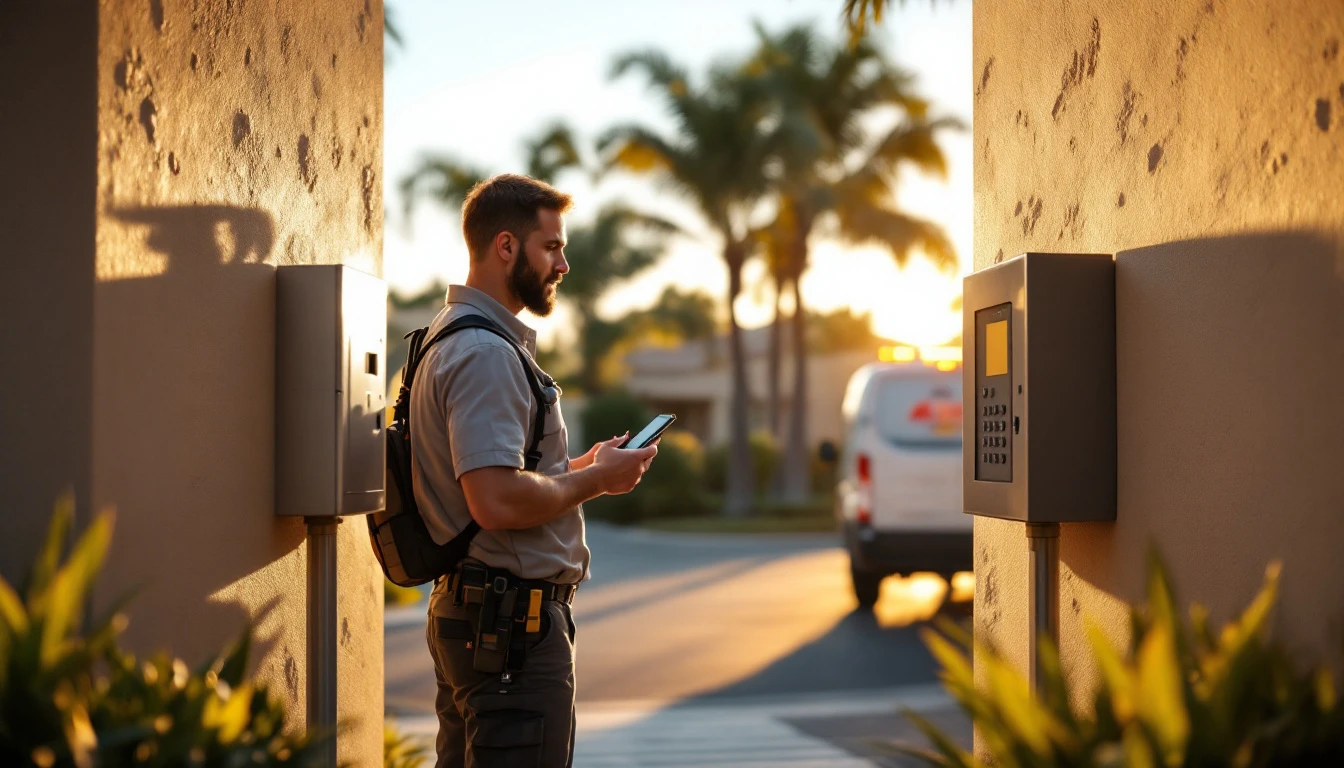
A failed visit does not always mean failed work. As of September 2026, one of the most common reasons a technician returns without touching a tool is that they never got in. The gate code changed last month. The call box lists a previous owner. The side gate to the pool equipment is padlocked and the customer is at work. The badge desk in the office tower closes at four and the appointment was at four fifteen. The attic hatch sits behind a stored sectional nobody planned to move.
Most of that is preventable with a few fields at booking and one question in a confirmation text. This post covers property access notes in field service software: what to ask at booking versus at the reminder, why access notes belong on the customer record rather than one appointment, how to write them so the next tech can read them three visits later, and how to handle stored codes responsibly. Be clear on what this is — free-text job and customer notes plus reminders. It is not a smart-lock integration and it is not a credential vault.
The failure nobody puts in the schedule
Look at your last thirty jobs and the handful that got rescheduled. Some were weather, some were parts, some were a customer who genuinely forgot. A real share were access: the tech arrived, stood at a gate or a locked door, called twice, and drove away.
That failure costs the same as a no-show. Round-trip drive time, fuel, a calendar slot that could have held a paying job, and a tech whose day is now one ticket short. It also costs goodwill, because the customer's version is that you came and left and the water heater is still broken.
What access actually means on a residential job
On a house, access is rarely just the front door. Think in four layers.
The perimeter. A gated community with a call box or keypad. An HOA-controlled rear entrance. A driveway gate with its own code. A guard who needs your company on a visitor list, which somebody has to phone in.
The building. Which door do you want the tech to use: front, side, garage, basement stairs, back slider? In a condo, whether the tech gets buzzed up, met by a leasing office, or handed a fob.
The obstacle. A locked side gate between the driveway and the condenser. A padlocked crawlspace hatch whose key is in a kitchen drawer. An attic hatch behind stored furniture. A dog loose in the yard, which is not a minor detail, because plenty of techs will not enter that yard and they are right not to.
The approach. No parking within two blocks. An alley a full-size van will not clear. A one-way street where equipment has to be carried.
What access means on a commercial job
Commercial access fails differently and worse, because more people stand between your tech and the equipment.
A storefront may have one manager who can open the back room, and that manager works Tuesday through Saturday. An office building has a badge desk with hours, so a four-o'clock appointment against a four-o'clock desk closing is a wasted trip. A warehouse has one receiving door a cart will fit through, on the opposite side of the building from the address on the work order.
Then there is the escort problem. Much commercial and property-management work needs someone to walk the tech to the equipment: a maintenance lead, a tenant, a property manager. If that person is not scheduled, the tech is not getting in no matter how correct the address is. Our guide to commercial accounts and recurring work orders covers keeping site contacts on the account instead of rediscovering them every visit.
Ask at booking versus confirm at the reminder
Here is the split that makes this practical instead of a ten-field wall on your booking page.
At booking, ask only what decides whether the tech can get in at all. Three or four questions, combined into one free-text field where you can. A booking form that feels like a mortgage application loses bookings, and losing a booking for data you could ask for tomorrow is a bad trade.
At the reminder stage, verify the details that go stale. This is the natural home for "is the gate code still 4412?" The customer is already reading the message, the answer is four characters, and a stale code is the most common access failure there is. Codes rotate. HOAs change vendors. One line in the confirmation catches it a day early instead of at the curb.
Two-way texting is what makes the reminder half work, because a reminder nobody can answer is a broadcast rather than a check. Thread mechanics are in the two-way texting playbook. Here is the question set by property type, split across the two stages.
| Property type | Ask at booking | Verify in the reminder | Failure this prevents |
|---|---|---|---|
| Single-family home | Which door, pet in the yard | Anything changed since last visit | Tech at the wrong door, loose dog |
| Gated community or HOA | Gate or keypad code, guard list needed | Is the code still current | Turned away at the call box |
| Apartment or condo | Unit number, buzzer name, who lets the tech up | Will someone be there to buzz | Tech stuck in the lobby |
| Rental with a tenant | Tenant name and mobile, who authorizes work | Tenant confirmed for the window | Owner booked, tenant absent |
| Equipment behind a locked gate | Is the side or pool gate locked, who has the key | Will the gate be unlocked | Unit unreachable, full trip wasted |
| Attic, crawlspace, or roof | Hatch location, anything stored in front of it | Please clear the hatch area | Tech cannot physically reach the work |
| Commercial storefront | On-site manager name and hours | Manager on shift that day | Back room locked, nobody authorized |
| Office building with badge desk | Lobby or security hours, visitor process | Desk staffed at the appointment time | Arrives after the desk closes |
Print that table and hand it to whoever answers your phone.
Who has to be home, and who just has to be reachable
These are different requirements, and mixing them up creates both wasted trips and needless friction.
Someone has to be physically present when the work is inside a locked structure, when a code alone will not open the door, when the job needs an authorizing decision on price or scope, when a pet has to be contained, or when a tenant must grant entry. For these the confirmation text should name the person: we need Maria at the unit between 10 and 12.
Someone only has to be reachable when access is unattended: an exterior condenser behind an unlocked gate, a meter, a roof, a yard. Here the customer's only job is to answer a phone if the tech hits a surprise. That is a much smaller ask, and saying so out loud wins bookings from people who cannot take a morning off work.
Record which one the job requires, because it changes the reminder you send and whether a missed appointment is even a failure. Set the arrival time window against the real requirement and the visit gets easier.
Access notes belong on the customer, not one appointment
This is the mistake that quietly undoes the intake work. A dispatcher takes a careful note, gate code 4412, use the side door, dog is friendly but loud, and types it into the appointment. The job completes and the appointment closes. Six months later the same customer books a different service, a different tech goes out, and asks every question again. The customer's read on that: do you people not keep records?
Durable facts go on the customer record: gate code, which door, the dog, parking, the tenant's name, badge desk hours. Visit-specific facts go on the appointment: leaving the side gate unlocked Thursday, meeting the property manager at 9, bring the long ladder.
That separation is the whole architecture, and a tech opening a job should see both together on their phone before leaving the shop. Tech Mode puts job and customer notes on the device the tech is already holding, which is the only place notes actually get read.
At five trucks with a dispatcher, that memory has to live in software or it does not exist. It is the same argument behind job readiness scoring before dispatch, where "can we get in?" matters as much as "do we have the part?"
Writing notes the next tech can read
Access notes rot two ways: they get vague, and they get long. Vague notes say "gate code" with no code, or "call first" with no number. They pass the writer's memory test and fail everyone else's. Long notes fail differently, because a tech in a driveway with one bar of signal is not reading nine lines of narrative, so the part that matters gets buried.
Rules that hold up:
- Lead with the blocker. The first six words should name the thing that stops the job. Gate code 4412, then side door. Not a paragraph about what the customer mentioned when booking.
- Name the person and the number. Tenant Maria, 817-555-0143, lets tech up. That beats "tenant will let you in."
- Date the volatile facts. Code 4412, confirmed 9/12, tells the next tech whether to trust it. An undated code from eleven months ago is a guess.
- Delete what stopped being true. A note nobody prunes becomes three contradictory codes and a tech who tries all of them.
- Write for a tech who has never been to this property, because eventually that is who goes.
The security side of storing codes
If you store gate codes, keypad codes, lockbox combinations, and door instructions, you are holding sensitive customer data. Treat it that way.
Limit who can see it. A scheduler needs to read a gate code to put it on the job; not everyone in the company needs to browse every stored code. GetTimePad's Owner, Admin, and Tech roles, plus the activity log with audit trail on Agency plans, are the relevant controls; platform detail is at security.
Keep codes out of side channels. The moment a code lands in a group text, a personal notes app, or a photo of a handwritten sticky note, it is outside every control you have. One system of record, on purpose.
Be conservative about what you store at all. A gate code is a convenience; an alarm disarm code is a different category of risk, and most service work does not need one. If a job genuinely requires it, take it at the visit rather than keeping it on file. Same for keys and lockbox combinations.
Closing the loop when access fails anyway
Some trips fail no matter how well you prepared. The customer forgot to unlock the gate. The escort called in sick. The badge desk closed early.
That is a policy question, and it has to be settled before it happens: how long the tech waits, what gets documented, whether a no-access trip charge applies, and where that charge was disclosed. A trip fee that first appears on the invoice is an argument. A trip fee stated on the booking page and repeated in the confirmation text is a policy. The full build is in the customer-not-home trip charge policy.
The two halves work together: good access notes shrink how often you need the policy, and a clear policy makes the remainder survivable. If you are still choosing a platform for this, the best field service management software walks the tradeoffs, and GetTimePad's own numbers are at pricing.
Frequently asked questions
What access information should I collect when booking a field service job?
Collect only what decides whether the tech can get in — gate or call box details, which entrance to use, whether a pet will be loose, and whether a locked gate blocks the equipment. Everything else belongs in the confirmation text. GetTimePad stores these as job and customer notes; see features.
Should gate codes live on the appointment or on the customer record?
On the customer record. A detail stored only on one appointment disappears when that job closes, so the next tech starts from zero and re-asks everything. Keep durable facts on the customer and visit-specific notes on the appointment. GetTimePad keeps both, see features.
How much does GetTimePad cost?
GetTimePad is $79/mo Starter for one staff member, $199/mo Pro for up to five staff, and $499/mo Agency for unlimited staff with API access. Job and customer notes plus automated email reminders are included from Starter up, text reminders come with the $19/mo SMS Bundle, annual billing gives you two months free, and there is a 14-day free trial. See pricing.
Is it safe to store gate codes and alarm codes in scheduling software?
Treat any stored code as sensitive customer data — least privilege on staff roles, no codes in group chats or personal notes apps, and removal when a code changes or the relationship ends. Never keep an alarm disarm code on file unless you truly need it. See security.
Does GetTimePad integrate with smart locks or gate systems?
No. GetTimePad does not integrate with smart locks, gate controllers, or building access systems, and it is not a credential vault. Access details live as free-text job and customer notes your team writes and reads, surfaced to the tech and reusable next visit.
What should my technician do when they cannot get access at all?
Log the attempt with a timestamp and a photo, text the customer from the job before leaving, and apply whatever no-access charge you disclosed at booking. That record is what makes the charge stick and shows whether this was a one-off or a pattern. See the customer-not-home trip charge policy.
Related articles
Customer Not Home — Trip Charge Policy for 2026
2026 guide to the customer-not-home trip charge — the prevention stack, a wait-time rule, where to disclose the fee, documentation, and when to waive it.
Read article →

Scheduling Commercial Accounts: Multi-Site Work Orders in 2026
2026 guide to scheduling commercial accounts: one payer with many sites, standing work orders, per-site access notes and response-time tracking.
Read article →

Multi-Day Project Scheduling Software for Contractors, 2026 Guide
2026 guide to scheduling multi-day jobs — linked visits on one job record, crew capacity across days, phase order, weather reschedules, and progress billing.
Read article →